
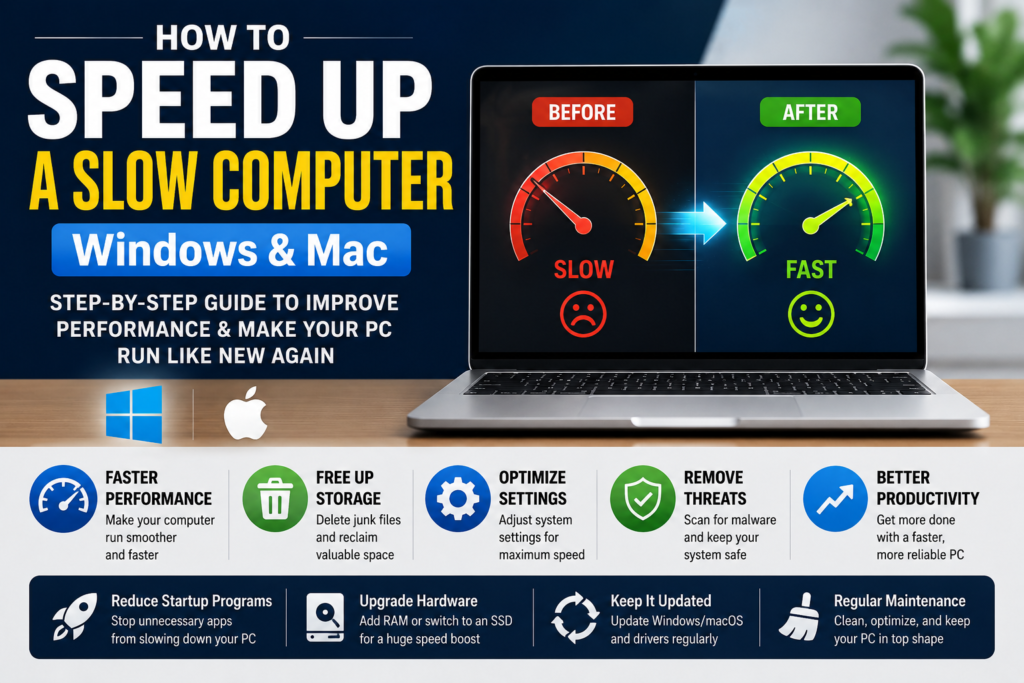

Few things are more frustrating than a computer that takes forever to start, freezes while you’re working, or struggles to open simple applications. Whether you’re using a Windows PC for work, a Mac for creative projects, or a laptop for school, a slow computer can waste valuable time and reduce productivity.
The good news is that you don’t always need to buy a new computer. In many cases, poor performance is caused by unnecessary startup programs, low storage space, outdated software, malware, or simple maintenance issues. By making a few adjustments, you can often restore much of your computer’s original speed.
This complete guide explains why computers become slow and provides practical, step-by-step solutions to improve performance on both Windows and macOS. Whether you’re a beginner or an experienced user, these tips can help your computer feel faster and more responsive.
Table of Contents
- Why Computers Become Slow
- Signs Your Computer Needs Optimization
- Restart Your Computer
- Remove Startup Programs
- Uninstall Unused Applications
- Free Up Storage Space
- Delete Temporary Files
- Update Windows or macOS
- Update Drivers
- Scan for Malware
- Improve Browser Performance
- Upgrade Hardware
- Optimize Windows Settings
- Optimize macOS Settings
- Laptop Performance Tips
- Maintenance Checklist
- Frequently Asked Questions
- Final Thoughts
Why Do Computers Become Slow?
Many people assume a slow computer means it’s old or broken. In reality, performance problems usually develop over time as software, files, and background processes accumulate.
Some of the most common reasons include:
- Too many startup applications
- Limited storage space
- Outdated operating system
- Old device drivers
- Malware or unwanted software
- Too many browser extensions
- Running too many programs at once
- Aging hardware
Identifying the cause is the first step toward improving performance.
Signs Your Computer Needs Optimization
Your computer may benefit from maintenance if you notice any of the following:
- Long startup times
- Slow application launches
- Frequent freezing
- Lag while browsing the internet
- High fan noise during simple tasks
- Programs crashing unexpectedly
- Delays when opening files
- Slow file transfers
- Reduced battery life on laptops
These symptoms often indicate that your system is working harder than necessary.
Check Your Computer’s Hardware
Before making software changes, take a moment to understand your computer’s hardware.
Check:
- Processor (CPU)
- Installed RAM
- Storage type (HDD or SSD)
- Available storage space
- Operating system version
Older computers with mechanical hard drives (HDDs) naturally perform more slowly than systems equipped with modern solid-state drives (SSDs).
Knowing your hardware will help you decide whether software optimization is enough or if a hardware upgrade may provide a bigger improvement.
Restart Your Computer Regularly
Many users leave their computers running for days or even weeks.
Restarting your computer:
- Clears temporary memory
- Stops unnecessary background processes
- Installs pending updates
- Refreshes system resources
A simple restart can solve many performance issues, especially if your computer has been running continuously.
Remove Unnecessary Startup Programs
One of the biggest reasons computers start slowly is because too many applications launch automatically when the system boots.
Examples include:
- Chat applications
- Cloud storage clients
- Music apps
- Game launchers
- Printer utilities
- Software updaters
Only keep programs that you use every day.
Reducing startup applications often results in noticeably faster boot times.
Uninstall Programs You No Longer Use
Many computers contain software that hasn’t been opened in months or even years.
Unused applications:
- Consume storage
- May run background services
- Can install automatic updaters
- Increase system clutter
Review your installed software and remove anything you no longer need.
This not only frees storage but also reduces unnecessary system activity.
Free Up Storage Space
A nearly full hard drive can significantly reduce system performance.
Try to keep at least 15–20% of your storage free whenever possible.
Ways to recover space include:
- Delete duplicate files.
- Empty the Recycle Bin or Trash.
- Remove old downloads.
- Delete unnecessary videos.
- Move large files to cloud storage or an external drive.
More available storage allows your operating system to manage files more efficiently.
Delete Temporary Files
Temporary files accumulate over time and may no longer be needed.
These include:
- Browser cache
- Application cache
- Temporary installation files
- Old update files
- System logs
Cleaning temporary files regularly helps recover storage space and keeps your system organized.
Keep Windows or macOS Updated
Software updates don’t just introduce new features—they also include bug fixes, performance improvements, and security patches.
Benefits of updating include:
- Better stability
- Faster performance
- Improved compatibility
- Enhanced security
- Fewer software bugs
Enable automatic updates whenever possible so your computer stays current.
Update Device Drivers
Windows users should also keep hardware drivers updated.
Important drivers include:
- Graphics card
- Network adapter
- Audio devices
- Chipset
- Storage controller
Updated drivers often improve stability, compatibility, and performance, especially after major operating system updates.
Mac users typically receive driver updates automatically through macOS updates.
Scan for Malware
Malware can quietly consume system resources, slow your computer, display unwanted advertisements, or even steal personal information.
Common signs include:
- Pop-up advertisements
- Unknown applications
- Browser redirects
- Slow startup
- High CPU usage
- Unexpected crashes
Run a trusted security scan regularly and remove any detected threats.
Preventing malware is easier than recovering from an infection.
Improve Browser Performance
Many people spend most of their time inside a web browser.
A slow browser often makes the entire computer feel slow.
Improve browser speed by:
- Closing unused tabs
- Removing unnecessary extensions
- Clearing browsing data occasionally
- Keeping your browser updated
- Avoiding suspicious extensions
If your browser feels sluggish, a clean-up can often restore responsiveness.
Reduce Background Applications
Every application running in the background uses system resources, even if you aren’t actively using it.
Examples include:
- Messaging apps
- Sync services
- Update managers
- Music players
- Cloud storage tools
Close programs you don’t need to free up memory and processing power for the tasks you’re currently performing.
Monitor Resource Usage
If your computer suddenly becomes slow, it’s helpful to identify which program is using the most resources.
Look for applications consuming unusually high amounts of:
- CPU
- Memory (RAM)
- Disk activity
- Network bandwidth
Finding the source of heavy resource usage allows you to close, update, or troubleshoot the application causing the slowdown.
Organize Your Desktop
A cluttered desktop filled with files and shortcuts can make it harder to stay organized.
Create folders for documents, screenshots, and downloads, and move older files off the desktop when possible.
While desktop clutter alone usually doesn’t cause major slowdowns, better organization can improve your workflow and make file management easier.
Keep Your Downloads Folder Clean
The Downloads folder often becomes a collection point for installers, PDFs, images, and duplicate files.
Review it regularly and remove anything you no longer need. This helps free up storage and keeps important files easier to find.
How to Speed Up a Slow Computer (Windows & Mac): The Complete Performance Optimization Guide (Part 2)
Continue reading from Part 1
Upgrade Your RAM
If your computer frequently slows down while running multiple applications, upgrading your RAM (Random Access Memory) can provide a noticeable performance boost.
Signs You Need More RAM
- Multiple programs freeze or become unresponsive.
- Web browsers slow down with many tabs open.
- Video editing or photo editing feels sluggish.
- Games stutter or load slowly.
- The computer constantly uses virtual memory.
Recommended RAM
- 8 GB – Suitable for everyday tasks.
- 16 GB – Ideal for work, gaming, and multitasking.
- 32 GB or more – Best for professionals, developers, and content creators.
Adding more RAM won’t increase processor speed, but it helps your computer handle more tasks simultaneously.
Upgrade from HDD to SSD
One of the most effective ways to speed up an older computer is replacing a traditional Hard Disk Drive (HDD) with a Solid-State Drive (SSD).
Benefits of an SSD
- Faster startup times
- Quicker application launches
- Improved file transfers
- Better overall responsiveness
- Reduced loading times
Many users report that installing an SSD makes their computer feel almost like a new machine.
Optimize Windows Performance
Windows includes several built-in tools that can improve system performance.
Adjust Visual Effects
Reducing unnecessary animations and visual effects can free up system resources, especially on older computers.
Use Storage Sense
Storage Sense automatically removes temporary files and helps manage disk space.
Keep Startup Apps Under Control
Review your startup applications every few months and disable any that are no longer necessary.
Use High Performance Mode (Desktop PCs)
If available, selecting a performance-focused power plan can improve responsiveness during demanding tasks.
Optimize macOS Performance
Mac computers also benefit from regular maintenance.
Keep macOS Updated
Apple frequently releases updates that improve performance and security.
Remove Login Items
Too many applications launching when you sign in can slow startup times.
Free Storage Space
Large photo libraries, downloads, and unused applications can consume valuable storage.
Restart Occasionally
Although Macs are known for stability, restarting periodically clears temporary system processes and memory.
Manage Background Processes
Many applications continue running even after you’ve closed their main window.
These background processes can consume:
- CPU resources
- RAM
- Battery power
- Network bandwidth
Review which apps run automatically and disable those you don’t need.
Optimize Your Browser
Since web browsers are among the most frequently used applications, optimizing them can make a significant difference.
Best Practices
- Close unused tabs.
- Remove unnecessary extensions.
- Clear cached data periodically.
- Update your browser regularly.
- Avoid installing unknown add-ons.
A lightweight browser setup often feels much faster.
Improve Gaming Performance
If you use your computer for gaming, a few adjustments can improve frame rates and responsiveness.
Gaming Tips
- Update graphics drivers.
- Close background applications before launching games.
- Keep storage space available.
- Reduce unnecessary startup programs.
- Lower graphics settings if your hardware struggles.
- Keep your system cool to avoid thermal throttling.
These optimizations won’t replace hardware upgrades, but they can improve the gaming experience.
Laptop Performance Tips
Laptops require a slightly different approach because they balance performance with battery life.
Keep Your Laptop Cool
Excess heat can reduce performance.
- Avoid blocking air vents.
- Clean dust from cooling vents.
- Use the laptop on a hard surface instead of soft bedding or cushions.
Monitor Battery Health
An aging battery may affect overall performance on some laptops. If your battery health is poor, consider replacing it through an authorized service provider.
Regular Maintenance Checklist
Keeping your computer in good condition doesn’t require hours of work. Performing a few maintenance tasks regularly can help maintain performance.
Weekly
- Restart your computer.
- Empty the Recycle Bin or Trash.
- Remove unnecessary downloads.
Monthly
- Install operating system updates.
- Update applications.
- Scan for malware.
- Review startup programs.
- Clean temporary files.
Every Few Months
- Back up important files.
- Review installed software.
- Check available storage.
- Organize folders.
- Inspect hardware for dust buildup if you’re comfortable doing so.
Common Mistakes That Slow Down Computers
Avoiding these common mistakes can help maintain good performance over time.
Installing Too Many Applications
Every installed program can consume storage, resources, or background services. Install only what you need.
Ignoring Software Updates
Updates often contain performance improvements and security fixes. Delaying them for long periods can create problems.
Running Too Many Programs
Having dozens of applications open at once increases memory and processor usage, leading to slower performance.
Downloading Software from Untrusted Sources
Unknown software may include unwanted programs or malware that affects system stability.
Never Restarting
Many users rely solely on sleep mode. Restarting your computer regularly refreshes system resources and helps complete pending updates.
Frequently Asked Questions
Why is my computer so slow even after restarting?
If restarting doesn’t help, check for low storage space, excessive startup applications, malware, outdated software, or hardware limitations such as insufficient RAM or an aging hard drive.
Will adding RAM make my computer faster?
Additional RAM can improve multitasking and responsiveness if your system is frequently running out of memory. However, it won’t increase the speed of your processor.
Is an SSD better than an HDD?
Yes. SSDs are significantly faster than traditional hard drives and can greatly improve boot times, application launches, and file transfers.
How often should I clean temporary files?
Cleaning temporary files every month is usually sufficient for most users, though heavy users may benefit from doing it more frequently.
Can viruses slow down a computer?
Yes. Malware can consume system resources, display unwanted ads, interfere with normal operations, and compromise your personal information.
How much free storage should I keep?
It’s generally a good idea to keep 15–20% of your storage capacity free to help your operating system perform efficiently.
Final Thoughts
A slow computer doesn’t necessarily mean it’s time to replace it. In many cases, a combination of regular maintenance, software optimization, and smart hardware upgrades can dramatically improve performance.
Start with simple tasks like removing unnecessary startup programs, freeing up storage, updating your operating system, and scanning for malware. If your computer still feels sluggish, upgrading to an SSD or adding more RAM can make a substantial difference, especially on older systems.
Keeping your computer clean, organized, and up to date not only improves speed but also extends its lifespan and enhances your overall experience. By following the tips in this guide, you can keep your Windows PC or Mac running smoothly for years to come.