
Microsoft Word has been the world’s most popular word-processing software for decades. Whether you’re writing school assignments, business reports, resumes, presentations, or personal documents, Microsoft Office remains one of the most powerful productivity suites available.
However, not everyone wants to pay for a Microsoft 365 subscription or purchase a full Office license. The good news is that you don’t always have to.
Many people don’t realize that Microsoft provides several completely legal ways to use Word, Excel, PowerPoint, and other Office apps for free. In addition, students, educators, and nonprofit organizations may qualify for free premium access, while several web-based and mobile solutions allow anyone to create and edit documents without spending money.
Unfortunately, many websites promote illegal activators, cracked software, or pirated Office downloads. Besides violating Microsoft’s licensing terms, these methods often expose users to malware, ransomware, spyware, and identity theft.
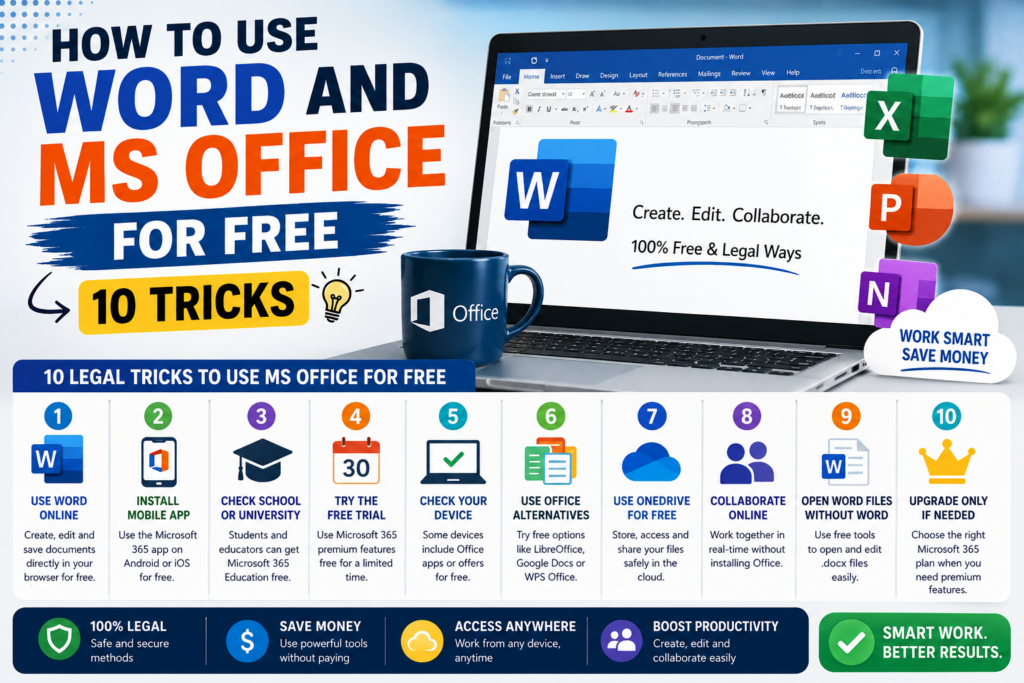
In this guide, you’ll discover 10 legitimate tricks that let you use Microsoft Word and Microsoft Office for free while keeping your computer secure and your documents protected.
Let’s start with the easiest methods.
Why Pay for Office When Free Options Exist?
Before purchasing Microsoft Office, it’s worth exploring the free options available.
Depending on your needs, you may only require basic document editing, spreadsheet management, or presentation creation. If that’s the case, Microsoft’s free services could be more than enough.
Free Office solutions are ideal for:
- Students
- Teachers
- Freelancers
- Small businesses
- Job seekers
- Home users
- Bloggers
- Remote workers
Most everyday tasks—including creating documents, editing spreadsheets, and designing presentations—can be completed without paying for premium software.
Trick 1: Use Microsoft Word Online for Free
One of the easiest and most overlooked options is Microsoft Word Online.
Microsoft offers a browser-based version of Word that works on almost any modern device.
With a free Microsoft account, you can:
- Create new Word documents
- Edit existing files
- Save documents automatically
- Access files from anywhere
- Collaborate with others in real time
- Share documents with a simple link
Because everything runs inside your web browser, there’s nothing to install or update.
Advantages
- Completely free
- Works on Windows, macOS, Linux, and Chromebooks
- Automatic cloud saving
- Familiar Microsoft Word interface
- Real-time collaboration
For everyday writing tasks, Word Online provides nearly everything most users need.
Trick 2: Install the Microsoft 365 Mobile App
Many users don’t realize that Microsoft allows basic editing through its official mobile apps.
The Microsoft 365 app combines several Office tools into a single application and is available for both Android and iPhone.
You can use it to:
- Create Word documents
- Edit Excel spreadsheets
- Build PowerPoint presentations
- Scan documents
- Convert images into PDFs
- Sign PDF files
- Access cloud files
For smartphones and smaller tablets, many core features are available at no cost with a Microsoft account.
It’s an excellent solution for students and professionals who need to work while traveling.
Trick 3: Check if Your School or University Offers Microsoft 365
If you’re a student, teacher, or school staff member, you may already qualify for a free Microsoft 365 Education subscription.
Many educational institutions partner with Microsoft, allowing eligible users to access premium Office apps without additional cost.
These plans often include:
- Microsoft Word
- Excel
- PowerPoint
- OneNote
- Outlook
- OneDrive cloud storage
- Microsoft Teams
All you typically need is your official school or university email address to check eligibility.
Before buying Microsoft Office, it’s worth seeing whether your educational institution already provides access.
Trick 4: Take Advantage of the Free Microsoft 365 Trial
If you need access to premium Office features for a short period—such as completing a major project, preparing a presentation, or editing important documents—you may be able to use Microsoft’s official trial offer.
During the trial period, eligible users can explore premium Office applications and cloud services before deciding whether to subscribe.
This is a convenient option for short-term needs, but remember to review the subscription details so you understand what happens when the trial ends.
Trick 5: Use Free Office Apps Already Installed on Some Devices
Some new laptops, tablets, and Windows devices include Microsoft Office apps or promotional access as part of the purchase.
Depending on the manufacturer and region, your device may already have:
- Microsoft Word
- Excel
- PowerPoint
- OneNote
Before purchasing a separate license, check whether your new device includes Microsoft Office benefits or activation offers.
Many users pay for software they already have.
Trick 6: Use Free Microsoft Office Alternatives
If Microsoft Office doesn’t meet your budget or you only need basic document editing, there are several high-quality alternatives available.
Popular options include:
- LibreOffice
- Google Docs
- WPS Office
- ONLYOFFICE
- Apple Pages (for Mac users)
Most of these applications support Microsoft Word (.DOCX), Excel (.XLSX), and PowerPoint (.PPTX) file formats, making it easy to open, edit, and save Office documents.
While they may not include every advanced Microsoft Office feature, they are more than sufficient for everyday tasks like writing reports, creating spreadsheets, or preparing presentations.
Trick 7: Use OneDrive for Free Cloud Storage
When you create a free Microsoft account, you also receive access to OneDrive cloud storage.
OneDrive allows you to:
- Save Word documents online.
- Access files from multiple devices.
- Share documents with others.
- Automatically sync important files.
- Recover previous versions of documents.
Storing your files in the cloud reduces the risk of losing important work if your computer crashes or is lost.
Trick 8: Collaborate Online Without Installing Office
One of the biggest advantages of Microsoft’s online Office tools is real-time collaboration.
Instead of emailing different versions of the same document, multiple users can work on a single file simultaneously.
Benefits include:
- Live editing
- Automatic saving
- Version history
- Easy sharing
- Commenting and suggestions
This is especially useful for students, remote teams, freelancers, and businesses working on shared projects.
Trick 9: Open Word Files Without Microsoft Word
Many people believe they must install Microsoft Word to read Word documents, but that’s not true.
You can open Word files using:
- Microsoft Word Online
- Google Docs
- LibreOffice Writer
- WPS Office
- ONLYOFFICE
These tools support most Word documents and allow you to make edits without purchasing Microsoft Office.
This is a great solution if you only need to review or make small changes to a document.
Trick 10: Choose the Right Microsoft 365 Plan Only If You Need Premium Features
While free options work well for many users, there are situations where a Microsoft 365 subscription may be worthwhile.
Premium plans are ideal if you need:
- Advanced Excel formulas and data analysis
- Professional PowerPoint design tools
- Desktop Office applications
- Large amounts of cloud storage
- Advanced security features
- Business collaboration tools
- Ongoing feature updates
Before subscribing, compare your needs with the free features available. Many users discover that the free versions already provide everything they require.
Bonus Tips to Get the Most from Microsoft Office
Whether you’re using the free or paid version, these tips can improve your productivity:
- Enable automatic saving to OneDrive.
- Learn useful keyboard shortcuts.
- Use templates for resumes, reports, and presentations.
- Organize files into folders.
- Keep your apps updated.
- Use comments when collaborating with others.
- Back up important documents regularly.
- Protect sensitive files with passwords where supported.
Small habits like these can save time and make working with Office applications much more efficient.
Common Mistakes to Avoid
Many users unknowingly put their computers and personal data at risk when trying to get Microsoft Office for free.
Avoid these common mistakes:
- Downloading Office from unofficial websites.
- Using cracked or pirated software.
- Installing unknown activation tools.
- Ignoring software updates.
- Reusing weak passwords for your Microsoft account.
- Saving important files in only one location.
Using official software helps protect your device from malware and ensures you receive updates and security improvements.
Frequently Asked Questions
Is Microsoft Word really free?
Yes. Microsoft offers a free web-based version of Word that allows users to create, edit, and share documents with a Microsoft account.
Can I use Microsoft Office without installing it?
Yes. Microsoft Word, Excel, and PowerPoint can be accessed through your web browser using Microsoft’s online services.
Is Microsoft Word Online safe?
Yes. Word Online is an official Microsoft service and is safe to use when accessed through your Microsoft account.
Can students get Microsoft Office for free?
Many schools, colleges, and universities participate in Microsoft 365 Education programs that provide eligible students and educators with free access. Availability depends on the institution.
Are free Office alternatives compatible with Word documents?
Yes. Most popular alternatives support Microsoft Office file formats, though some advanced formatting or specialized features may not appear exactly the same.
Which Free Option Is Best?
The right choice depends on how you use Office.
For basic document editing: Microsoft Word Online is an excellent choice.
For students: Check whether your school provides Microsoft 365 Education.
For mobile users: The Microsoft 365 mobile app offers convenient editing on smartphones and tablets.
For offline work: LibreOffice and other desktop alternatives are reliable options.
If you only write documents occasionally, you may never need to purchase Microsoft Office at all.
Final Thoughts
Microsoft Office remains one of the most powerful productivity suites available, but paying for a subscription isn’t the only way to access its features. Thanks to Microsoft’s official web apps, mobile applications, education programs, and free cloud services, millions of users can create, edit, and share documents without spending money.
The key is choosing a solution that matches your needs. If you’re writing essays, preparing reports, managing spreadsheets, or creating presentations for personal use, the free options available today are more capable than ever.
Most importantly, always use official software and trusted services. Avoid cracked versions, activation tools, and unofficial downloads, as they can expose your device to malware, compromise your personal information, and violate software licensing terms.
By following the ten legal methods outlined in this guide, you can enjoy the benefits of Microsoft Word and Microsoft Office while keeping your files secure, your computer protected, and your productivity high—all without unnecessary costs.