
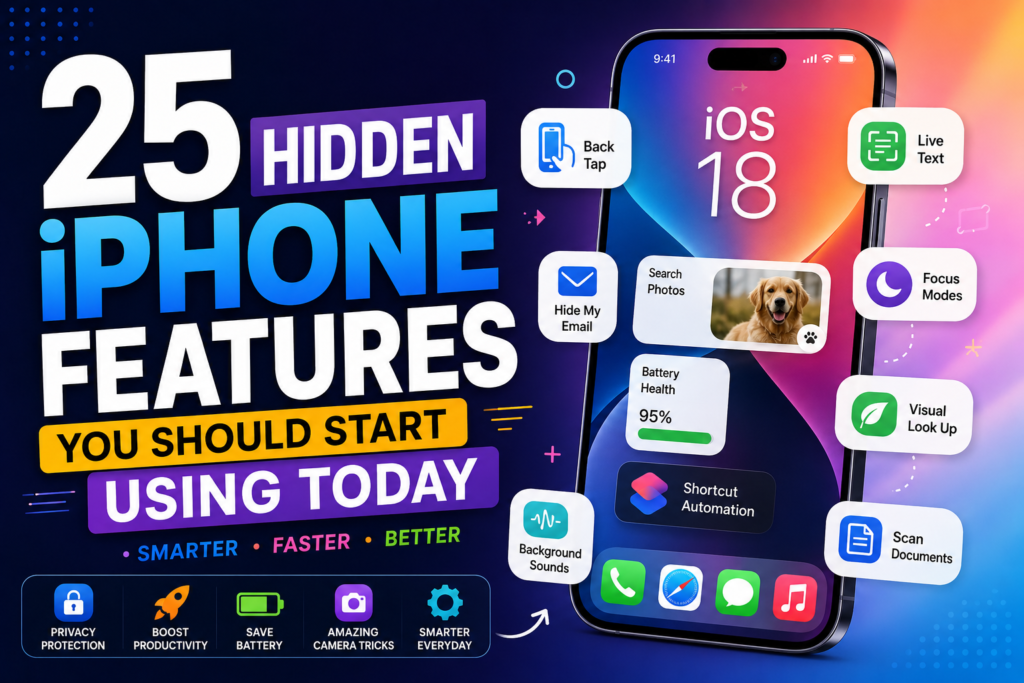

Apple is known for creating powerful and user-friendly devices, but many of the iPhone’s best features remain hidden beneath the surface. While most users are familiar with making calls, sending messages, taking photos, and browsing the web, iPhones include dozens of advanced tools that can save time, improve productivity, strengthen privacy, and make everyday tasks much easier.
With every iOS update, Apple introduces new capabilities, improves existing features, and refines the overall user experience. However, many of these improvements are never fully explored because they’re tucked away inside the Settings app or require specific gestures and shortcuts to activate.
Whether you’ve just bought a new iPhone or have been using one for years, chances are you’re only scratching the surface of what your device can do.
In this guide, we’ll explore 25 hidden iPhone features that every user should know. From secret camera tricks and advanced privacy settings to productivity tools and battery-saving options, these features will help you unlock your iPhone’s full potential.
Let’s dive into the first ten hidden features.
1. Back Tap Shortcuts
One of the most underrated iPhone features is Back Tap.
Instead of navigating through menus or opening apps manually, you can simply tap the back of your iPhone two or three times to trigger different actions.
You can use Back Tap to:
- Take a screenshot
- Lock your screen
- Open the camera
- Launch the flashlight
- Activate Siri
- Open Control Center
- Start a shortcut
- Mute your phone
How to Enable Back Tap
- Open Settings.
- Tap Accessibility.
- Select Touch.
- Scroll down and tap Back Tap.
- Choose Double Tap or Triple Tap.
- Assign your preferred action.
Once configured, Back Tap becomes one of the fastest ways to perform common tasks.
2. Live Text
Have you ever wanted to copy text directly from a photo?
With Live Text, your iPhone can recognize text inside images, screenshots, and even the live camera view.
This feature is incredibly useful for:
- Copying Wi-Fi passwords
- Saving phone numbers
- Translating foreign languages
- Copying notes from a whiteboard
- Extracting addresses from photos
Simply open a supported photo, press and hold on the text, and select the action you want.
It’s like having built-in optical character recognition (OCR) on your device.
3. Visual Look Up
Apple’s Visual Look Up feature uses artificial intelligence to identify objects within your photos.
It can recognize:
- Plants
- Animals
- Landmarks
- Artwork
- Food
- Books
- Statues
- Famous locations
Simply open a photo in the Photos app and tap the information icon if Visual Look Up is available. Your iPhone will provide details about what’s in the image, making it an excellent tool for learning more about the world around you.
4. Hide Your Email Address
Protecting your privacy online has become more important than ever.
If you subscribe to newsletters, create new accounts, or sign up for online services, you don’t always have to share your real email address.
Apple’s Hide My Email feature generates a random email address that forwards messages to your actual inbox.
Benefits include:
- Reduced spam
- Better privacy
- Easier email management
- Protection against data leaks
This feature is especially useful when signing up for websites you don’t fully trust.
5. Scan Documents Without an App
Many users install third-party scanning applications without realizing their iPhone already includes one.
Using the built-in Notes app, you can quickly scan:
- Contracts
- Receipts
- Business cards
- Homework
- Invoices
- Letters
How to Scan Documents
- Open the Notes app.
- Create a new note.
- Tap the paperclip icon.
- Select Scan Documents.
- Position the document in front of the camera.
The iPhone automatically detects edges, enhances the image, and creates a high-quality PDF.
6. Measure Objects Using Your Camera
Forgot your measuring tape?
The built-in Measure app uses augmented reality (AR) to estimate the size of real-world objects.
You can measure:
- Furniture
- Tables
- Doors
- Boxes
- Rooms
- Packages
Although it isn’t as precise as professional measuring tools, it’s surprisingly accurate for everyday use.
7. Lock Hidden Photos
Many people know about the Hidden album in the Photos app, but fewer realize you can secure it with Face ID, Touch ID, or your passcode.
This ensures private photos remain protected even if someone else is using your phone.
To enable this feature:
- Open Settings.
- Tap Apps > Photos (or Photos, depending on your iOS version).
- Enable Use Face ID for the Hidden album.
Your hidden images will only be accessible after successful authentication.
8. Quickly Select Multiple Photos
Deleting or organizing hundreds of pictures doesn’t have to be slow.
Instead of tapping every image individually, simply:
- Open the Photos app.
- Tap Select.
- Drag your finger across multiple photos.
The iPhone automatically selects every image you swipe over, saving a huge amount of time.
9. Built-In Password Manager
Your iPhone includes a secure password manager that many users overlook.
It stores:
- Website passwords
- App logins
- Wi-Fi passwords
- Verification codes
- Passkeys
It can also:
- Generate strong passwords
- Detect compromised passwords
- Autofill login forms
- Sync across Apple devices using iCloud
Using Apple’s built-in password manager is both convenient and more secure than reusing weak passwords.
10. Focus Modes
Focus Modes help reduce distractions by automatically filtering notifications depending on what you’re doing.
You can create different profiles for:
- Work
- Personal time
- Sleep
- Driving
- Gaming
- Studying
- Fitness
Each Focus Mode can customize:
- Home Screen pages
- Notification settings
- Allowed contacts
- Allowed apps
- Lock Screen appearance
For example, during work hours you can receive only emails and business messages while hiding social media notifications.
This simple feature can dramatically improve productivity and help maintain a healthier work-life balance.
11. Customize Your Lock Screen
Apple completely redesigned the Lock Screen experience, allowing users to personalize it like never before.
You can customize:
- Wallpapers
- Fonts
- Clock styles
- Widgets
- Focus Modes
- Photo shuffle backgrounds
How to Customize Your Lock Screen
- Press and hold your Lock Screen.
- Tap Customize.
- Add widgets, change fonts, or select a new wallpaper.
Widgets can display useful information like weather, battery levels, calendar events, and fitness progress without unlocking your phone.
12. Siri Shortcuts
Siri is much more than a voice assistant.
With the Shortcuts app, you can automate repetitive tasks with a single tap or voice command.
Examples include:
- Opening multiple apps at once
- Sending your location automatically
- Turning on Low Power Mode
- Starting a workout playlist
- Creating PDF files
- Controlling smart home devices
Once you start using Shortcuts, you’ll wonder how you ever managed without them.
13. Emergency SOS
Safety is one of Apple’s biggest priorities.
Every modern iPhone includes Emergency SOS, allowing users to quickly contact emergency services and notify emergency contacts during dangerous situations.
How It Works
Press and hold the Side Button and either Volume Button until the emergency slider appears.
Depending on your region and device, your iPhone can automatically call emergency services and share your location with trusted contacts.
This feature is worth setting up before you ever need it.
14. Use Your iPhone as a Document Scanner
While we covered scanning in the Notes app earlier, many users don’t realize scanned documents can also be:
- Signed digitally
- Shared instantly
- Converted to PDFs
- Stored in Files
- Uploaded directly to cloud storage
This makes your iPhone a surprisingly powerful office tool without installing additional apps.
15. Hide Recently Deleted Apps
If you frequently lend your phone to friends or family, you can reduce clutter and keep sensitive apps out of sight by organizing them into folders or using Screen Time restrictions where appropriate.
Combined with Face ID protection for supported apps and features, this helps create a cleaner and more private user experience.
16. Background Sounds
Many people struggle to concentrate in noisy environments.
The iPhone includes built-in background sounds that can help improve focus and relaxation.
Available sounds include:
- Rain
- Ocean
- Stream
- Balanced Noise
- Bright Noise
- Dark Noise
Enable Background Sounds
- Open Settings.
- Go to Accessibility > Audio & Visual > Background Sounds.
- Turn the feature on and choose your preferred sound.
It’s a great option for studying, working, sleeping, or reducing distractions.
17. Hidden Safari Features
Safari includes several powerful tools that many users never notice.
Useful features include:
- Reader Mode for distraction-free reading
- Tab Groups for organizing browsing sessions
- Built-in Privacy Report
- Website Translation
- Password Monitoring
- Tracking Prevention
These features improve browsing speed, organization, and privacy without requiring third-party browsers.
18. Live Captions
Live Captions automatically generate captions for supported audio content.
This feature is particularly useful for:
- Watching videos
- Online meetings
- Podcasts
- Phone calls (where supported)
- Accessibility needs
Captions appear in real time, making audio content easier to follow in different environments.
19. Battery Health Management
Instead of simply checking your battery percentage, your iPhone can also show the condition of your battery.
Check Battery Health
- Open Settings.
- Tap Battery.
- Select Battery Health & Charging.
Here you can view:
- Maximum battery capacity
- Peak performance capability
- Charging optimization settings
Keeping an eye on battery health helps you decide when it may be time for service or replacement.
20. Keyboard Shortcuts
The iPhone keyboard includes several hidden shortcuts that save time while typing.
Examples include:
- Hold the space bar to move the cursor precisely.
- Double-tap the space bar to insert a period.
- Hold certain keys to access accented characters.
- Swipe down on suggestions to dismiss predictive text.
These small shortcuts can make everyday typing faster and more accurate.
21. Offline Maps
Planning a trip?
The Maps app allows you to download supported map areas for offline use, making navigation easier when you have limited or no internet connection.
Offline maps can help you:
- Save mobile data
- Navigate while traveling
- Find destinations without a signal
- View routes in remote areas
It’s a valuable feature for road trips and international travel.
22. Find My Network
Even if your iPhone is offline or its battery is critically low, Apple’s Find My network can help locate it using nearby Apple devices.
This feature can also help you locate:
- AirPods
- iPads
- Macs
- AirTags
- Supported accessories
Make sure Find My is enabled so your devices are easier to recover if they’re lost.
23. Visual Intelligence and Apple Intelligence Features
On supported devices, Apple continues to expand AI-powered experiences that help users write, summarize information, organize notifications, and interact with content more naturally.
As Apple introduces additional intelligence features through future iOS updates, users can expect improvements in productivity, communication, and on-device assistance while maintaining Apple’s strong focus on privacy.
24. Shared Passwords and Passkeys
Managing passwords becomes much easier with Apple’s secure password tools.
You can:
- Share passwords with trusted family members.
- Create secure passkeys for supported websites.
- Automatically fill login credentials.
- Receive alerts about weak or compromised passwords.
These tools reduce the need to remember dozens of complex passwords while improving account security.
25. Accessibility Features Everyone Can Benefit From
Accessibility tools aren’t only designed for users with disabilities—they can improve the experience for everyone.
Some useful options include:
- Magnifier
- Voice Control
- Spoken Content
- AssistiveTouch
- Sound Recognition
- Live Speech
- Reduce Motion
- Larger Text
Exploring the Accessibility settings can reveal helpful features that make everyday tasks easier and more comfortable.
Bonus Tips Every iPhone User Should Know
To keep your iPhone running smoothly:
- Keep iOS updated to the latest version.
- Restart your device occasionally.
- Remove apps you no longer use.
- Enable automatic iCloud backups.
- Review app permissions regularly.
- Keep sufficient free storage available.
- Use optimized battery charging when possible.
- Protect your Apple ID with two-factor authentication.
These habits help improve security, reliability, and long-term performance.
Frequently Asked Questions
Are hidden iPhone features available on every iPhone?
Some features work across many iPhone models, while others require newer hardware or recent versions of iOS. Always keep your device updated to access the latest features available for your model.
Do hidden iPhone features reduce battery life?
Most features have little impact on battery life. However, tools that rely heavily on location services, the camera, or continuous background activity may increase power consumption.
Are these features safe to use?
Yes. Every feature covered in this guide is built into iOS and developed by Apple.
Should I install third-party apps for these features?
In many cases, no. Apple already includes document scanning, password management, automation, privacy tools, and many other capabilities directly within iOS.
Final Thoughts
Your iPhone is capable of much more than making calls, sending messages, and browsing social media. Hidden throughout iOS are dozens of powerful features designed to save time, improve productivity, strengthen privacy, and make everyday tasks easier.
Whether you’re using Back Tap to launch shortcuts, Live Text to copy information from photos, Focus Modes to reduce distractions, or the built-in document scanner to manage paperwork, these tools can significantly enhance the way you use your device.
The best part is that most of these features are already built into your iPhone—you simply need to enable and start using them.
Take a few minutes to explore the settings mentioned in this guide, experiment with the features that fit your needs, and you’ll discover just how powerful your iPhone can be. With regular iOS updates, Apple continues to introduce new capabilities, so checking for new features periodically is a great way to get even more value from your device.