
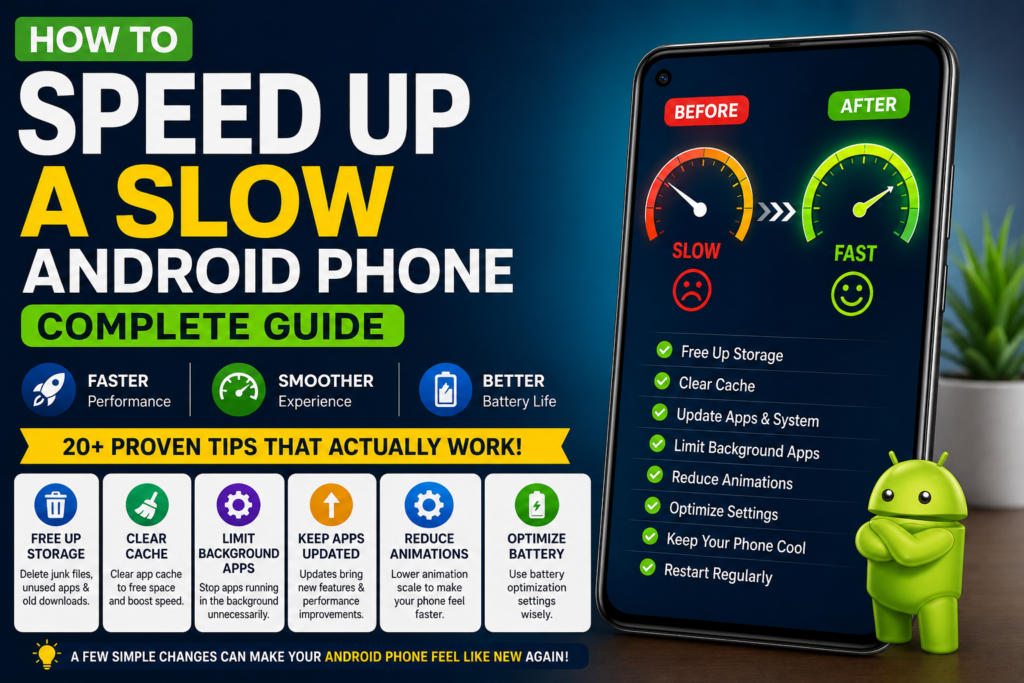

Has your Android phone become slower than it used to be? Apps take longer to open, games lag, web pages load slowly, and switching between apps feels frustrating. If that sounds familiar, you’re not alone.
Over time, Android phones naturally accumulate temporary files, background apps, and unnecessary data that can affect performance. The good news is that you don’t always need to buy a new phone. In many cases, a few simple changes can significantly improve speed and responsiveness.
Whether you’re using a Samsung Galaxy, Google Pixel, OnePlus, Xiaomi, Motorola, Oppo, Vivo, or another Android device, this guide will walk you through proven methods to optimize your phone’s performance.
By the end of this guide, you’ll know how to reduce lag, free up storage, improve battery efficiency, and make your Android phone feel much faster.
Table of Contents
- Why Android Phones Slow Down
- Signs Your Phone Needs Optimization
- Restart Your Phone Regularly
- Update Android
- Remove Unused Apps
- Free Up Storage
- Clear Cache
- Limit Background Apps
- Disable Unnecessary Animations
- Keep Apps Updated
- Reduce Widgets
- Battery Optimization
- Gaming Performance Tips
- Factory Reset (Last Resort)
- Frequently Asked Questions
- Final Thoughts
Why Does an Android Phone Become Slow?
Even powerful Android phones can slow down over time. As you install more apps, save more photos and videos, and use your phone daily, its resources become increasingly stretched.
Some of the most common reasons include:
- Too many installed apps
- Low storage space
- Excessive cached data
- Too many background processes
- Outdated Android software
- Old app versions
- Malware or unwanted apps
- Battery-saving restrictions affecting performance
- Aging hardware
Understanding the cause of slow performance helps you choose the right solution instead of guessing.
Signs Your Android Phone Needs Optimization
If you notice any of the following, your device could benefit from a performance tune-up:
- Apps open slowly.
- The home screen lags.
- Keyboard typing is delayed.
- Videos stutter.
- Games freeze or drop frames.
- Switching between apps feels slow.
- Battery drains faster than usual.
- The phone becomes unusually warm during light use.
These symptoms often indicate that your phone is under unnecessary strain.
Restart Your Phone Regularly
Many people rarely restart their phones, but doing so can refresh the system and clear temporary processes.
Restarting your Android device can:
- Free up memory (RAM)
- Stop unnecessary background tasks
- Improve app performance
- Resolve temporary software glitches
- Help complete pending updates
Restarting once every few days is a simple habit that can help keep your device running smoothly.
Keep Android Updated
Software updates often include performance improvements, bug fixes, and security patches.
Why Updates Matter
- Better system stability
- Faster performance
- Improved battery optimization
- Enhanced security
- Better app compatibility
Before installing an update, make sure your device has enough battery life and storage space.
Remove Apps You No Longer Use
Many users install apps for one-time use and never open them again.
Unused apps can:
- Occupy valuable storage
- Run background services
- Consume battery
- Download updates automatically
Review your installed applications every few months and uninstall anything you no longer need.
A cleaner device usually performs better.
Free Up Storage Space
One of the biggest reasons Android phones become slow is insufficient storage.
Try to keep at least 15–20% of your internal storage free whenever possible.
Ways to Free Storage
- Delete duplicate photos.
- Remove old videos.
- Clear the Downloads folder.
- Uninstall unused games.
- Move files to cloud storage.
- Transfer photos to a computer.
- Delete large files you no longer need.
More available storage gives Android room to manage apps and temporary files more efficiently.
Clear App Cache
Apps store temporary files (cache) to load content faster. Over time, these files can grow large and may become outdated.
Clearing cache can:
- Recover storage space
- Fix minor app issues
- Improve responsiveness
- Remove outdated temporary files
Focus on clearing cache for apps you use frequently, such as web browsers, social media apps, and streaming services.
Keep Your Apps Updated
Developers regularly release updates that improve speed, fix bugs, and enhance compatibility with newer Android versions.
Benefits of updating apps include:
- Better performance
- Reduced crashes
- Improved security
- New features
- Greater stability
Enabling automatic updates through the Google Play Store can help ensure your apps stay current.
Limit Background Apps
Many applications continue running even after you’ve stopped using them.
Background apps consume:
- RAM
- CPU resources
- Battery
- Mobile data
Reducing unnecessary background activity can make your phone feel noticeably more responsive, especially on devices with limited memory.
Reduce Home Screen Widgets
Widgets are convenient, but each active widget may use processing power, internet access, and battery life.
If you have several widgets updating throughout the day, consider removing those you rarely use.
Keeping your home screen simple can improve both performance and battery efficiency.
Disable Unnecessary Animations
Android includes transition and animation effects that make the interface feel smooth, but they can also make older devices seem slower.
Reducing animation effects can make menus, apps, and navigation feel quicker.
Many users are surprised by how much faster their phones feel after adjusting these settings.
Avoid Installing Apps from Unknown Sources
Apps downloaded outside trusted app stores may include malware or poorly optimized software that slows your phone.
For the best performance and security:
- Download apps from the Google Play Store whenever possible.
- Read reviews before installing unfamiliar apps.
- Remove suspicious or rarely used applications.
A secure phone is often a faster phone.
How to Speed Up a Slow Android Phone (Complete Guide) – Part 2
Continue reading from Part 1
Enable Battery Optimization Wisely
Battery optimization helps extend battery life, but it can also limit the performance of some apps running in the background. If you notice delays in notifications or slow app performance, reviewing these settings may help.
Tips for Better Performance
- Keep battery optimization enabled for most apps.
- Exclude only important apps that require real-time updates, such as messaging or navigation apps.
- Avoid using aggressive battery saver modes all the time, as they may reduce performance.
Finding the right balance between battery life and speed is key.
Use Lite Versions of Apps
Many popular apps offer lightweight versions that use less storage, RAM, and mobile data.
Examples include:
- Facebook Lite
- Messenger Lite (where available)
- Google Go
- Maps Go
Lite apps are especially useful on entry-level or older Android devices with limited hardware resources.
Improve Gaming Performance
If you enjoy mobile gaming, optimizing your phone can help reduce lag and improve frame rates.
Gaming Tips
- Close all background apps before launching a game.
- Enable your phone’s built-in Game Mode if available.
- Lower graphics settings in demanding games.
- Keep your phone cool during long gaming sessions.
- Ensure you have enough free storage space.
- Use a stable Wi-Fi connection for online games.
These simple adjustments can provide a smoother gaming experience.
Turn Off Unnecessary Features
Some Android features continuously run in the background, even when you’re not using them.
Consider disabling features you rarely use, such as:
- Bluetooth
- NFC
- Nearby Share
- Location services (when not needed)
- Mobile hotspot
- Auto-sync for unused accounts
Turning off unused features can reduce background activity and improve battery life.
Review Developer Options
Android includes a hidden menu called Developer Options, which contains advanced settings.
One commonly used adjustment is reducing animation scales.
Animation Settings
You can reduce:
- Window animation scale
- Transition animation scale
- Animator duration scale
Lower animation values can make your phone feel faster by reducing the time spent on visual effects.
Note: Only change settings you understand. Other Developer Options are intended for advanced users and may affect system stability.
Keep Your Phone Cool
Excessive heat can reduce performance because Android automatically slows the processor to protect the hardware.
Prevent Overheating
- Avoid using your phone in direct sunlight for extended periods.
- Remove thick phone cases while gaming if they trap heat.
- Close resource-intensive apps when they’re no longer needed.
- Avoid charging and gaming simultaneously for long periods.
A cooler phone generally performs better.
Restart Apps That Misbehave
Sometimes a single app is responsible for slowing down your phone.
If an app freezes, crashes frequently, or uses excessive battery:
- Force close the app.
- Clear its cache.
- Check for updates.
- Reinstall the app if necessary.
If the problem continues, consider using an alternative app.
Factory Reset (Last Resort)
If you’ve tried every optimization tip and your phone is still extremely slow, a factory reset may help.
A factory reset removes installed apps, personal files, and settings, restoring the phone to its original software state.
Before Resetting
- Back up your photos, videos, and documents.
- Sync contacts and important data to your Google account.
- Make sure you know your Google account credentials.
Only perform a factory reset after exhausting less drastic solutions.
Develop Good Maintenance Habits
Keeping your Android phone fast isn’t about one big fix—it’s about regular maintenance.
Weekly
- Restart your phone.
- Close apps you’re no longer using.
- Remove unnecessary screenshots and downloads.
Monthly
- Install Android updates.
- Update apps from the Google Play Store.
- Review storage usage.
- Clear cache for frequently used apps.
- Delete files you no longer need.
Every Few Months
- Uninstall apps you haven’t used recently.
- Back up important data.
- Review app permissions.
- Check battery health if your device provides this information.
Consistent maintenance helps prevent performance issues from building up over time.
Common Mistakes That Slow Down Android Phones
Avoid these habits if you want your phone to stay fast.
Installing Too Many Apps
Every app uses storage, and some continue running in the background. Install only the apps you actually use.
Ignoring Updates
Running outdated versions of Android or your apps can lead to slower performance and security risks.
Keeping Storage Almost Full
A nearly full phone has less room to manage temporary files efficiently. Aim to keep at least 15–20% of your storage free.
Using Untrusted Apps
Apps from unknown sources may contain malware or be poorly optimized, affecting both performance and security.
Never Restarting
Leaving your phone running for weeks without a restart can allow background processes to accumulate and consume resources.
Frequently Asked Questions
Why is my Android phone suddenly slow?
A sudden slowdown can be caused by low storage space, too many background apps, outdated software, malware, or a problematic app update.
Does clearing cache make an Android phone faster?
It can. Clearing cached data may free up storage and resolve temporary issues with certain apps, especially if the cache has become corrupted or excessively large.
Should I use a task killer app?
In most cases, no. Modern Android versions manage memory efficiently on their own, and task killer apps may actually reduce performance by constantly reopening apps.
Is it safe to use Developer Options?
Yes, but only if you understand the settings you’re changing. Adjusting animation scales is generally safe, while other options should be left alone unless you know their purpose.
How much free storage should I keep?
Keeping around 15–20% of your phone’s storage free helps Android manage temporary files and maintain good performance.
Will replacing the battery make my phone faster?
If your phone’s battery has significantly degraded, replacing it may improve stability and performance, particularly on devices that reduce processor speed to protect aging batteries.
Final Thoughts
A slow Android phone doesn’t always mean it’s time to upgrade. In many cases, simple maintenance tasks—such as clearing unnecessary files, updating apps, reducing background activity, and managing storage—can noticeably improve performance.
For older devices, using Lite apps, reducing animations, and keeping the system updated can extend the phone’s useful life. If performance problems persist even after following these tips, it may be worth considering a hardware upgrade or replacing the device if it’s several years old.
By adopting the habits outlined in this guide, you can keep your Android phone running smoothly, improve responsiveness, and enjoy a better overall user experience without spending money unnecessarily.