
A slow computer can be incredibly frustrating. Whether you’re waiting for apps to open, dealing with long startup times, or experiencing lag while browsing or gaming, poor performance can significantly reduce your productivity.
Windows 11 is Microsoft’s most advanced operating system, offering a modern design, improved security, and powerful new features. However, over time, even the fastest PCs can become slower due to unnecessary startup programs, background processes, outdated drivers, temporary files, and system clutter.
The good news is that you don’t always need to buy a new computer to solve these issues.
With the right optimization techniques, you can dramatically improve your PC’s speed, responsiveness, and overall performance. Many of these methods take only a few minutes to complete and don’t require any technical expertise.
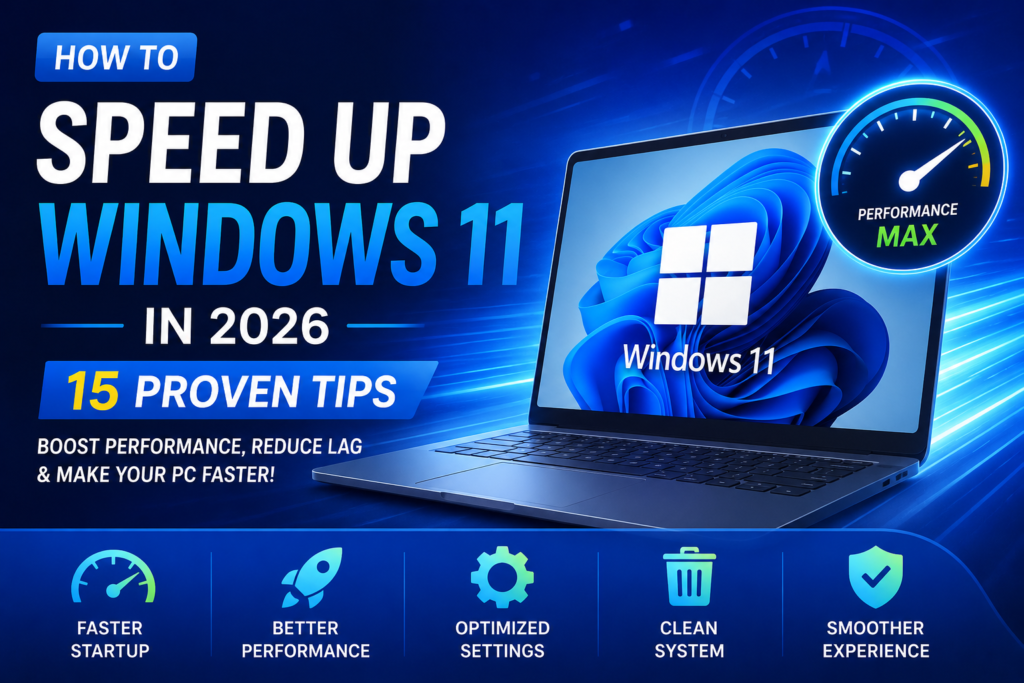
In this comprehensive guide, we’ll walk you through 15 proven tips that can help speed up Windows 11 in 2026. Whether you’re using a desktop, laptop, gaming PC, or work computer, these optimization methods can help you get the best possible performance from your system.
Let’s start with the most effective improvements.
Why Does Windows 11 Become Slow Over Time?
Many users notice that their computers feel fast when they’re brand new but gradually become slower after months or years of use.
This happens because Windows constantly installs updates, applications add background services, startup programs increase, temporary files accumulate, and storage becomes cluttered. As more software is installed, system resources such as RAM, CPU, and storage are used more heavily.
Some of the most common reasons Windows 11 slows down include:
- Too many startup applications
- Low available storage space
- Outdated drivers
- Background apps consuming RAM
- Malware or unwanted software
- Corrupted system files
- Old hard drives (HDDs)
- Too many browser extensions
- Windows updates running in the background
- Visual effects consuming system resources
Fortunately, most of these issues can be fixed without spending any money.
Before You Start
Before making any performance changes, it’s a good idea to take a few precautionary steps.
Create a System Restore Point
A restore point allows you to roll back your system if something doesn’t work as expected after making changes.
Install the Latest Windows Updates
Microsoft regularly releases updates that improve performance, fix bugs, and enhance security.
Restart Your Computer
It may sound simple, but restarting your PC clears temporary memory and closes unnecessary background processes.
After completing these basic steps, you’re ready to begin optimizing Windows 11.
Tip 1: Disable Unnecessary Startup Programs
One of the biggest causes of slow boot times is having too many applications launch automatically when Windows starts.
Many programs, including messaging apps, game launchers, cloud storage tools, and update services, configure themselves to start every time you turn on your computer.
While each program may use only a small amount of memory, together they can significantly increase startup time and reduce overall performance.
How to Disable Startup Apps
- Press Ctrl + Shift + Esc to open Task Manager.
- Click the Startup Apps tab.
- Review the list of applications.
- Right-click any unnecessary app.
- Select Disable.
Only disable applications that you don’t need immediately after startup.
Common apps you can usually disable include:
- Spotify
- Discord
- Skype
- Zoom
- Adobe Creative Cloud
- Steam
- Epic Games Launcher
- Microsoft Teams (if not used regularly)
Reducing startup applications is one of the fastest and safest ways to improve Windows boot time.
Tip 2: Free Up Disk Space
When your system drive becomes nearly full, Windows has less room to manage temporary files, virtual memory, and updates.
Keeping at least 20–25% of your system drive free helps maintain smooth performance.
Delete Temporary Files
Windows stores thousands of temporary files that are no longer needed.
To remove them:
- Open Settings.
- Go to System > Storage.
- Click Temporary Files.
- Select the files you want to remove.
- Click Remove Files.
Enable Storage Sense
Windows includes a built-in feature called Storage Sense that automatically deletes temporary files, empties the Recycle Bin, and manages unnecessary system data.
To enable it:
- Open Settings
- Navigate to System > Storage
- Turn on Storage Sense
- Configure automatic cleanup based on your preferences
This helps keep your computer optimized without requiring manual maintenance.
Tip 3: Turn Off Unnecessary Background Apps
Many applications continue running in the background even after you’ve closed them.
These background processes consume valuable:
- RAM
- CPU resources
- Battery life
- Network bandwidth
While some apps need to run continuously, many do not.
Reduce Background Activity
Open:
Settings > Apps > Installed Apps
Select an application you rarely use, open its advanced options (where available), and adjust its background permissions if appropriate. You can also uninstall apps you no longer need to reduce resource usage.
The fewer unnecessary programs running in the background, the more system resources remain available for the applications you actually use.
Tip 4: Keep Windows and Drivers Updated
Many people ignore Windows updates because they don’t want to restart their computer.
However, these updates often include:
- Performance improvements
- Bug fixes
- Driver updates
- Security patches
- Hardware compatibility enhancements
Similarly, outdated graphics, network, and chipset drivers can reduce performance and cause stability issues.
Check for Windows Updates
- Open Settings.
- Select Windows Update.
- Click Check for Updates.
- Install any available updates.
- Restart your computer if prompted.
If your PC has a dedicated graphics card from NVIDIA, AMD, or Intel, make sure you’re also using the latest graphics driver provided by the manufacturer.
Keeping both Windows and your drivers up to date helps ensure your system runs efficiently and remains compatible with the latest software and hardware improvements.
Tip 5: Adjust Visual Effects for Better Performance
Windows 11 includes beautiful animations, shadows, transparency effects, and visual transitions that make the operating system look modern. While these effects enhance the user experience, they can consume valuable system resources—especially on older computers or devices with limited RAM.
If your PC feels sluggish, reducing these visual effects can noticeably improve responsiveness.
How to Disable Visual Effects
- Press Windows + S and search for Adjust the appearance and performance of Windows.
- Open the Performance Options window.
- Select Adjust for best performance or manually disable unnecessary effects.
- Click Apply and then OK.
Disabling animations won’t change Windows functionality, but it can make menus, windows, and applications respond faster.
Tip 6: Uninstall Programs You No Longer Use
Over time, many users install software they rarely use. These applications often leave behind services, startup entries, scheduled tasks, and background processes that continue consuming storage and system resources.
Review your installed software every few months and remove anything you no longer need.
How to Uninstall Apps
- Open Settings.
- Go to Apps > Installed Apps.
- Find the program you want to remove.
- Click the three-dot menu.
- Select Uninstall.
Removing unnecessary software frees up storage space and reduces background activity.
Tip 7: Scan Your Computer for Malware
One of the most overlooked causes of poor performance is malware.
Viruses, spyware, adware, and malicious software can secretly use CPU power, memory, and internet bandwidth while running in the background.
Fortunately, Windows Security provides excellent built-in protection.
Run a Full Security Scan
- Open Windows Security.
- Select Virus & Threat Protection.
- Click Scan Options.
- Choose Full Scan.
- Start the scan and allow it to complete.
Running regular security scans helps maintain both performance and system security.
Tip 8: Upgrade to an SSD (If You’re Still Using an HDD)
If your computer still uses a traditional Hard Disk Drive (HDD), upgrading to a Solid State Drive (SSD) is one of the biggest performance improvements you can make.
Unlike HDDs, SSDs have no moving parts, allowing them to read and write data much faster.
Benefits include:
- Faster boot times
- Quicker application launches
- Faster file transfers
- Improved gaming performance
- Better overall responsiveness
For many older computers, replacing an HDD with an SSD can make the system feel almost brand new.
Tip 9: Increase Virtual Memory
Windows uses virtual memory, also known as the paging file, when physical RAM becomes full.
If your computer frequently runs out of memory while multitasking, increasing the paging file size may improve stability.
How to Adjust Virtual Memory
- Search for Advanced System Settings.
- Open Performance Settings.
- Select the Advanced tab.
- Under Virtual Memory, click Change.
- Configure a custom paging file size or allow Windows to manage it automatically.
For most users, allowing Windows to manage virtual memory works well.
Tip 10: Choose the Best Power Mode
Power settings affect how Windows balances performance and energy consumption.
Many laptops use balanced or power-saving modes by default, which may reduce CPU performance to extend battery life.
If you need maximum speed, switch to a higher-performance mode.
Change Power Mode
- Open Settings.
- Select System > Power & Battery.
- Under Power Mode, choose Best Performance when plugged in.
Desktop users can also enable the High Performance power plan if available.
Tip 11: Reduce Browser Resource Usage
Modern web browsers are powerful but can consume significant amounts of RAM and CPU, especially when many tabs or extensions are open.
To improve performance:
- Close unused tabs.
- Remove unnecessary browser extensions.
- Clear browsing cache regularly.
- Enable Memory Saver (if supported by your browser).
- Keep your browser updated.
A lighter browser workload can noticeably improve overall system responsiveness.
Tip 12: Disable Transparency Effects
Transparency effects make Windows look elegant but also require additional graphics processing.
Turning them off can slightly improve performance on lower-end systems.
Disable Transparency
- Open Settings.
- Navigate to Personalization > Colors.
- Turn Transparency Effects off.
While the visual difference is subtle, every optimization helps on less powerful hardware.
Tip 13: Keep Your Desktop Organized
A cluttered desktop filled with hundreds of files and shortcuts can slow Windows Explorer, particularly during startup.
Organize your desktop by:
- Moving files into folders.
- Deleting unnecessary shortcuts.
- Archiving old documents.
- Keeping only frequently used items visible.
A clean desktop also makes your workspace more productive.
Tip 14: Restart Windows Explorer
Sometimes Windows Explorer becomes sluggish after running continuously for long periods.
Instead of restarting your entire computer, you can restart Explorer.
Restart Explorer
- Open Task Manager.
- Find Windows Explorer.
- Right-click it.
- Select Restart.
This refreshes the desktop, taskbar, and File Explorer without closing your open applications.
Tip 15: Restart Your PC Regularly
Many users leave their computers running for days or even weeks.
While modern computers can stay powered on for long periods, restarting regularly clears temporary memory, resets background services, and installs pending updates.
Restarting your PC once every few days helps maintain consistent performance.
Bonus Tips for Maximum Performance
If you want to squeeze even more speed out of Windows 11, consider these additional optimizations:
- Keep at least 20% of your SSD free.
- Upgrade your RAM if you multitask heavily.
- Use Microsoft Edge’s efficiency features or your browser’s memory-saving mode.
- Disable unnecessary widgets if you never use them.
- Clean dust from your computer to prevent overheating.
- Keep BIOS and firmware updated when recommended by your PC manufacturer.
- Back up important files regularly before making major system changes.
Frequently Asked Questions
Why is Windows 11 slower than Windows 10?
Windows 11 includes more advanced security features, animations, and background services than Windows 10. On older hardware, these additional features may make the system feel slower. Proper optimization can significantly improve performance.
Will disabling startup apps make my PC faster?
Yes. Fewer startup applications mean Windows has fewer programs to load during boot, resulting in faster startup times and more available RAM.
Is it safe to disable visual effects?
Yes. Disabling visual effects only changes the appearance of Windows. It does not remove features or affect system stability.
Does upgrading RAM improve Windows performance?
Absolutely. If your computer frequently runs out of memory while multitasking, adding more RAM can improve responsiveness and reduce slowdowns.
Is an SSD really worth upgrading?
Yes. For most users, upgrading from an HDD to an SSD provides the largest performance improvement without replacing the entire computer.
Final Thoughts
A slow computer doesn’t always mean it’s time to buy a new one. In many cases, Windows 11 performance problems are caused by unnecessary startup apps, outdated software, cluttered storage, background processes, or settings that can be optimized in just a few minutes.
By following the 15 proven tips in this guide, you can significantly improve your computer’s speed, responsiveness, and overall reliability. Whether you’re working, gaming, studying, or simply browsing the web, a well-optimized Windows 11 system delivers a smoother and more enjoyable experience.
The best results come from combining several optimization methods rather than relying on just one. Start by disabling unnecessary startup programs, cleaning up your storage, keeping Windows updated, and regularly scanning for malware. If your computer still feels slow, upgrading to an SSD or adding more RAM can provide an even greater boost.
With regular maintenance and these practical optimization techniques, your Windows 11 PC can continue performing efficiently well into 2026 and beyond.